ABGC Digital Platform
Users Guide
Step-by-step instructions for navigating, managing, and using all modules of the ABGC Digital Platform — eCommunication, eDocuments, eLearning, and eCommerce — developed within the SA SKILLS project framework.
Impressum
Disclaimer: This Users Guide has been prepared within the framework of the SA SKILLS project. The views expressed do not necessarily reflect the official position of the European Union, the Managing Authority, or the participating countries.
© 2026 University of Montenegro — Institute of Marine Biology. Reproduction permitted for non-commercial purposes with source acknowledgement.
Introduction
An overview of the ABGC Digital Platform, its purpose, intended audience, and the four core modules that make up the integrated digital ecosystem.
The Adriatic Blue Growth Cluster (ABGC) digital platform serves as a collaborative digital environment supporting cross-border cooperation among stakeholders from Montenegro, Italy, Albania, and the broader Adriatic region. It fosters knowledge exchange, skills development, and sustainable blue economy growth.
1.1 Purpose of the Guide
This Users Guide provides comprehensive instructions for navigating and using the ABGC Digital Platform, developed within the framework of the SA SKILLS project under the Interreg IPA South Adriatic Programme 2021–2027.
The guide supports users in:
- Accessing platform functionalities and managing personal profiles
- Connecting and cooperating with other registered users
- Utilizing the eDocumentation repository for project outputs and resources
- Participating in digital learning activities and certified training programmes
- Engaging with the eCommerce marketplace environment
1.2 Who This Guide Is For
1.3 Platform Overview
The ABGC Digital Platform is structured around four core modules:
Enables interaction and networking among registered users. Supports direct messaging, connection management, and cross-border collaboration within the blue economy community.
A structured repository for project deliverables, policy documents, training materials, reports, and scientific publications. Ensures transparency and organized access to resources.
Provides access to accredited training programmes including ILMs, HELMs, Master-level courses, and ECTS-based certification opportunities aligned with the European Qualifications Framework.
A virtual marketplace enabling presentation of blue economy products and services, promoting SME visibility and cross-border economic interaction across the South Adriatic region.
The SA SKILLS project (ID: SA-0200142) runs from July 2023 to October 2027 under Interreg IPA South Adriatic 2021–2027, co-funded by the European Union. It supports the development of high-level, market-responsive competences for a digitalized and sustainable South Adriatic region.
Quick Start Guide
A concise overview of the essential steps to get up and running on the ABGC Digital Platform. For detailed instructions, refer to the relevant chapters in this guide.
2.1 Create Your Account
- Open southadriaticskills.org in your browser.
- Scroll down to the "Join the ABGC Community" section on the landing page.
- Complete the registration form — all fields marked with an asterisk (*) are required.
- Select the platform modules you wish to access.
- Accept the Terms of Use and Privacy Policy.
- Click the "Register" button to submit your registration.
A confirmation email will be sent to your registered inbox immediately after successful registration. Check your spam or junk folder if it does not arrive within a few minutes.
2.2 Log In to the Platform
- Click Account → Login in the top-right corner of the landing page.
- Enter your Username or Email and your Password.
- Click the "Login" button.
Your full name will appear in the top-right Account button, confirming you are successfully logged in.
2.3 Complete Your Profile
Navigate to Account → Edit Profile and fill in your details:
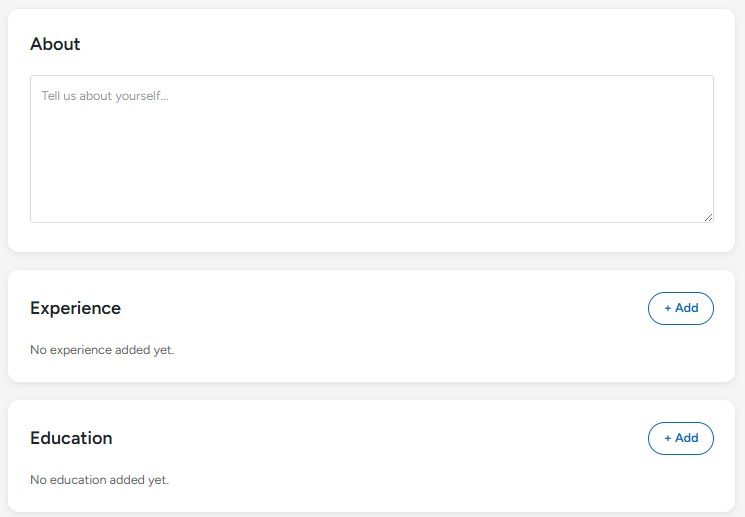
- Profile photo and cover image
- Professional headline
- About / biography section
- Work experience and education
- Contact details (phone, website, LinkedIn, X)
- Professional skills
2.4 Use the Main Platform Modules
2.5 Need Help?
If you experience difficulties, contact the platform administrators through the Support section on the website at southadriaticskills.org. Detailed troubleshooting guidance is also provided in Chapter 10 of this guide.
Getting Started
Step-by-step guidance for accessing and activating your account on the ABGC Digital Platform, covering registration, email verification, login procedures, and password management.
3.1 Registration
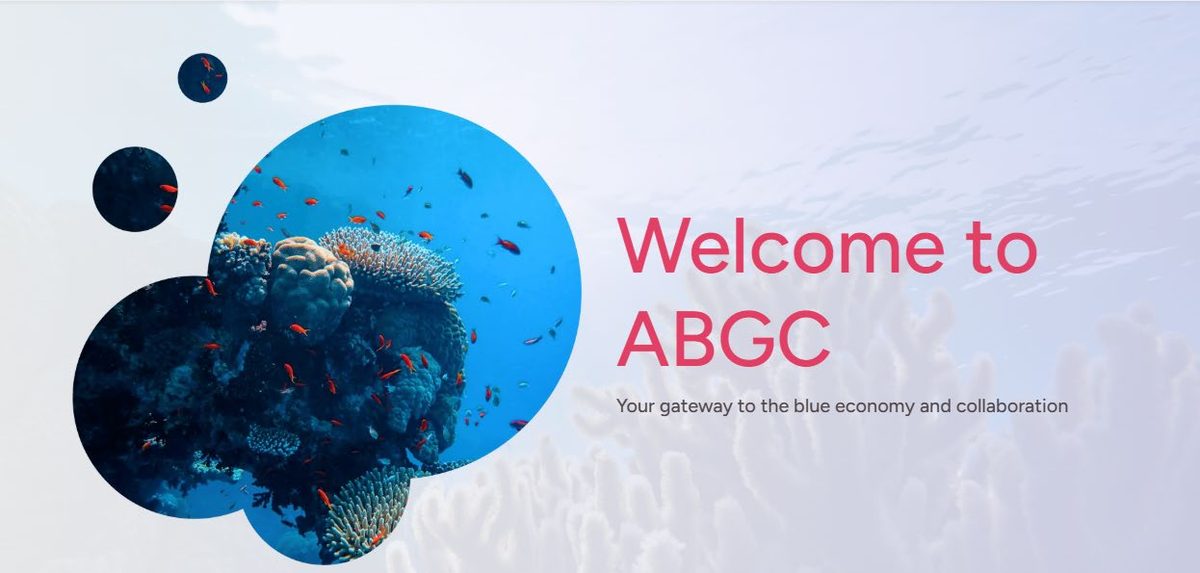
Navigate to https://southadriaticskills.org/ to access the platform landing page.
Scroll down to the "Join the ABGC Community" section. Complete the registration form by entering your account details in all required fields marked with an asterisk (*).
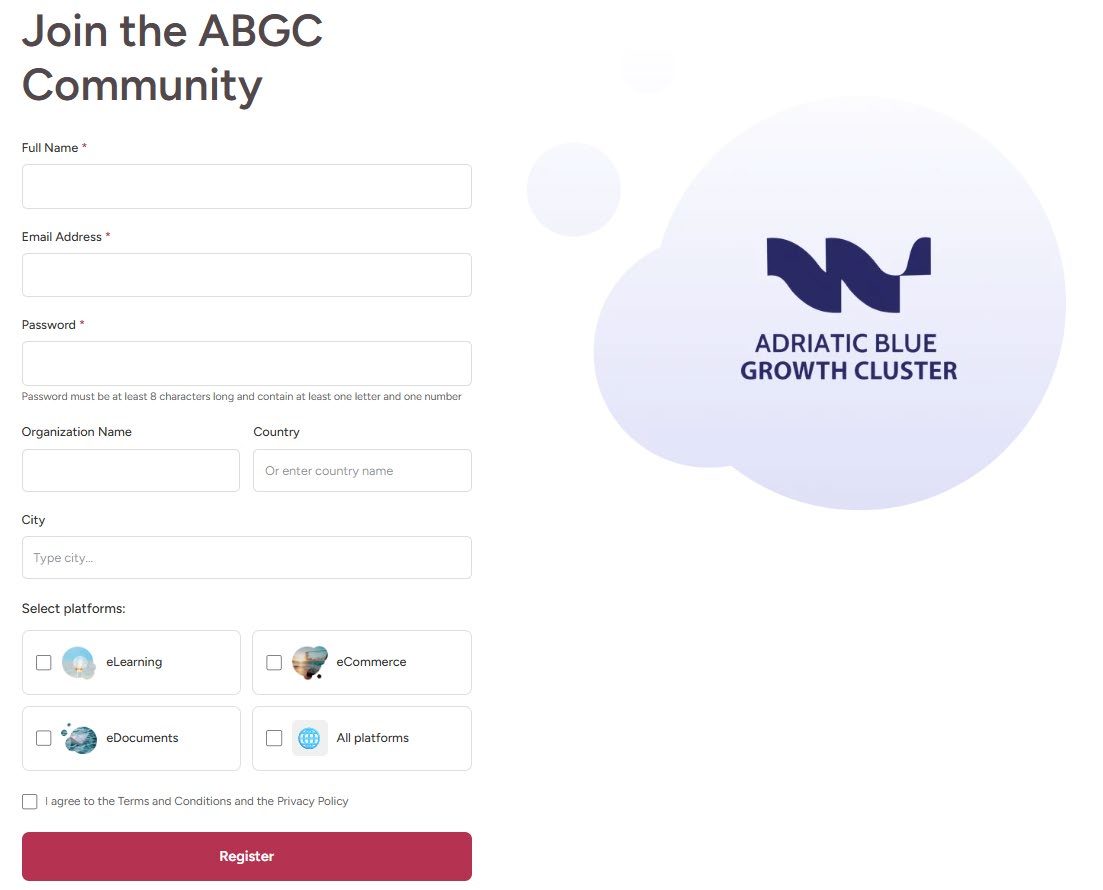
For better profile visibility within the platform, it is recommended to complete all available fields, including optional ones such as Organization Name, Country, and City.
The following fields are available in the registration form:
If you are unsure which modules to choose, select "All platforms." Access preferences can be adjusted later through your profile settings.
Registration cannot be completed without accepting the Terms of Use and Privacy Policy. The Register button will remain inactive until this checkbox is selected.
- Click the "Register" button to confirm your registration.
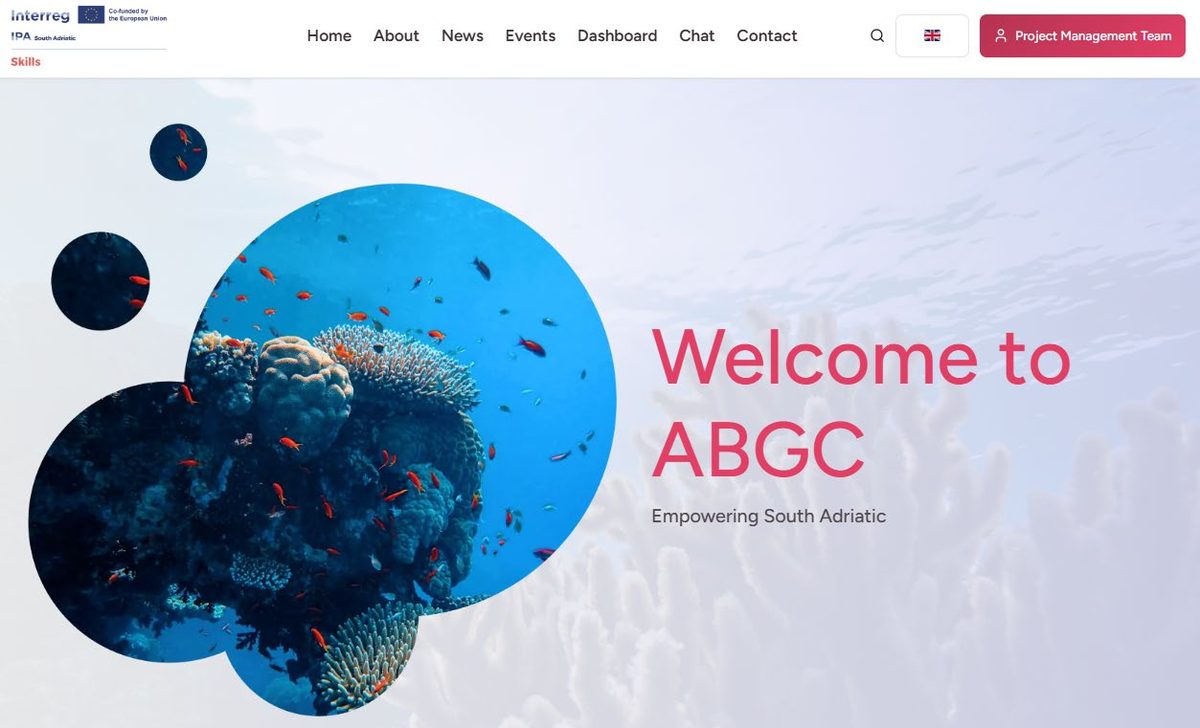
- After successful submission, you will be redirected to the landing page as a registered user.
- The Account button in the top-right corner will update to display your registered Full Name instead of "Login."
3.2 Email Verification
Upon successful registration, an automatic confirmation email will be sent to the address provided during registration.
If you do not receive the confirmation email within a few minutes, please check your spam or junk folder.
3.3 Login
To access your account, click the Account button in the top-right corner of the landing page and select Login. You will be redirected to the Login page.
- Enter your Username or Email in the first field.
- Enter your Password in the second field.
- Click the "Login" button to access your account dashboard.
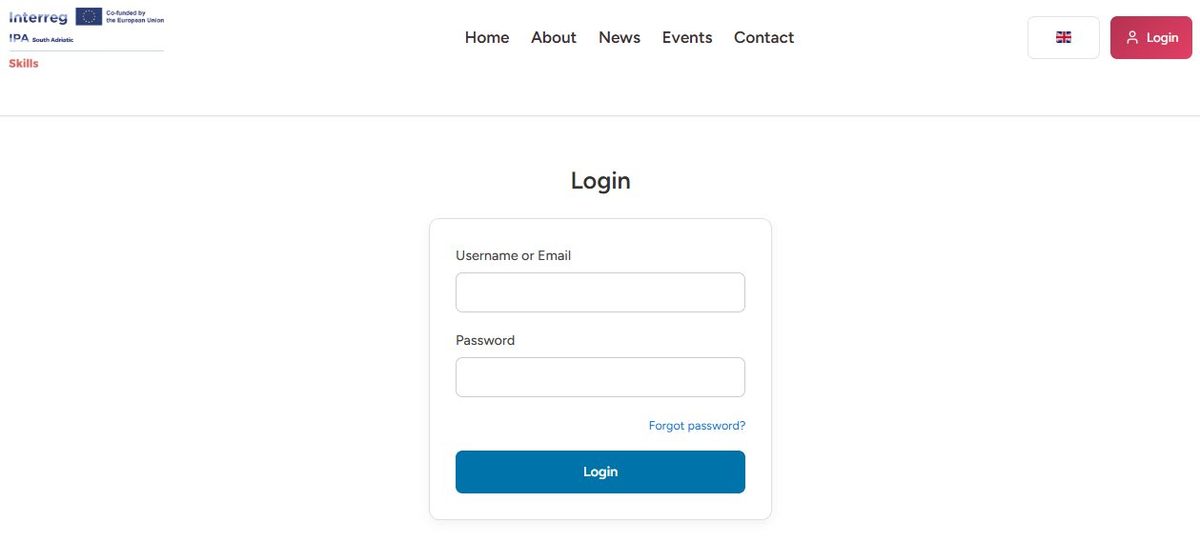
You may use either your registered username or your registered email address to log in — both are accepted.
Login is case-sensitive. Ensure that your password is entered exactly as created during registration. Check that Caps Lock is not enabled.
3.4 Password Reset
If you have forgotten your password, follow these steps to regain access:
- On the Login page, click the "Forgot password?" link below the Password field.
- Enter your registered email address in the prompt field and confirm.
- Check your inbox for an automatic password reset email from the platform.
- Open the email and click the provided reset link.
- Enter your new password and confirm it in the second field.
- Click Save to apply the new password.
- Return to the Login page and sign in using your new credentials.
The password reset link is valid for 10 minutes only. If the link expires, repeat the process by clicking "Forgot password?" again. If you did not request a reset, ignore the email — no changes will be made to your account.
User Profile Management
This chapter explains how to edit and manage your personal profile within the ABGC Digital Platform, including cover images, professional details, contact information, skills, and account settings.
4.1 Edit Profile
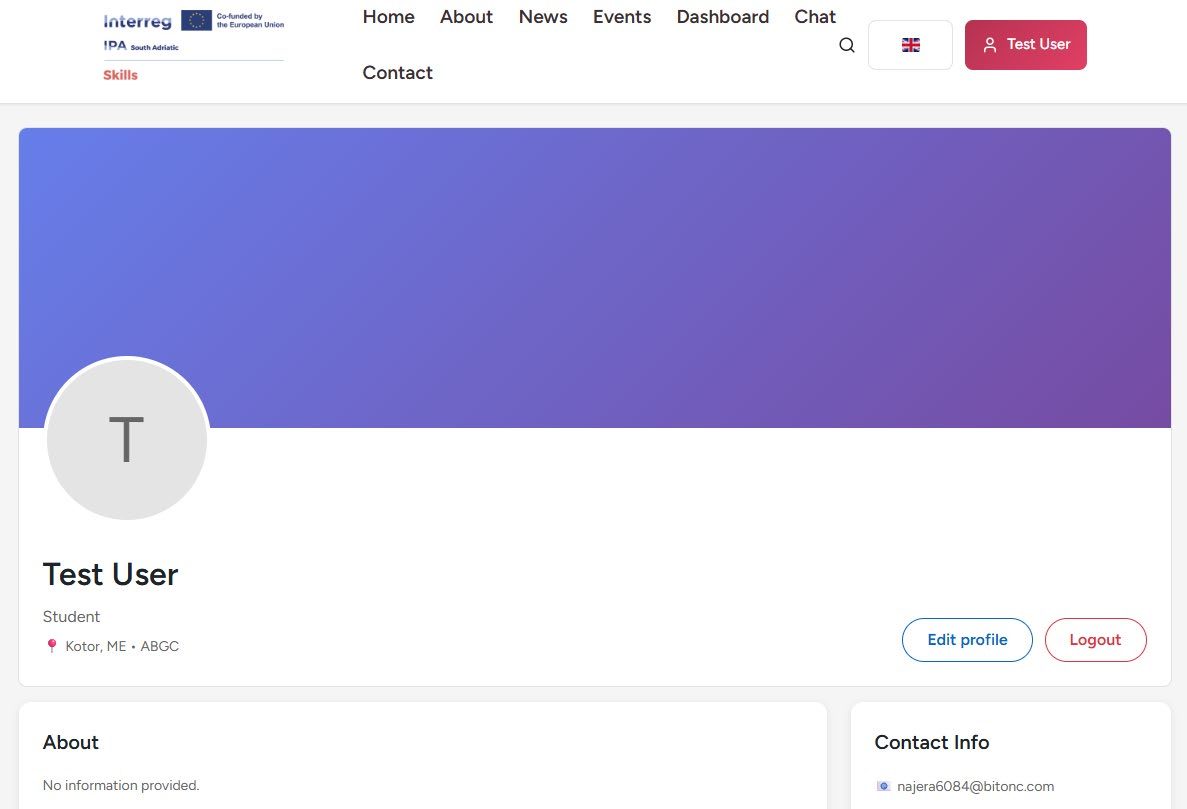
To update your profile information, click the Account button in the top-right corner — it displays your registered Full Name when logged in.
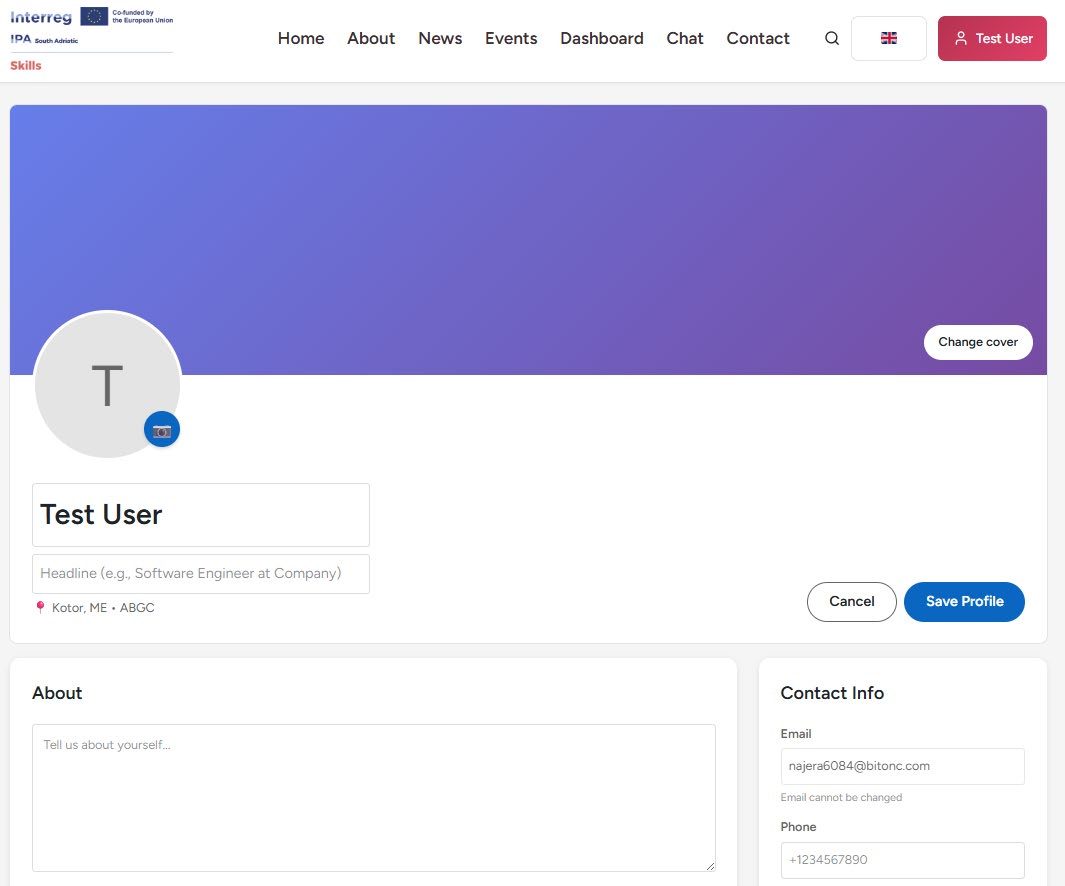
On your profile page, click the blue "Edit profile" button. The profile will switch into edit mode, revealing all editable sections.
4.1.1 Profile Header Area
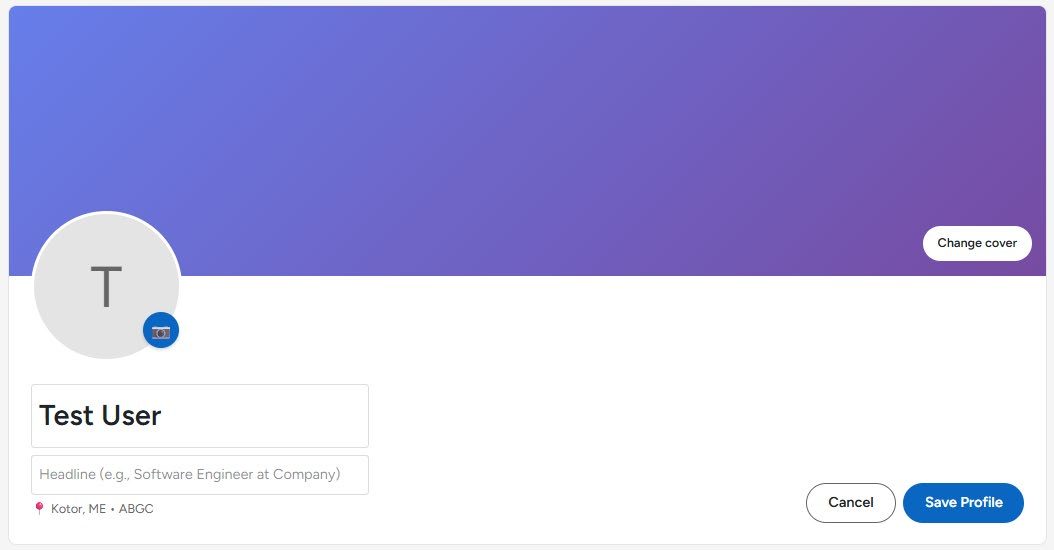
If no profile photo is uploaded, the system will automatically generate a default avatar displaying the first letter of your registered name.
4.1.2 Profile Content Sections
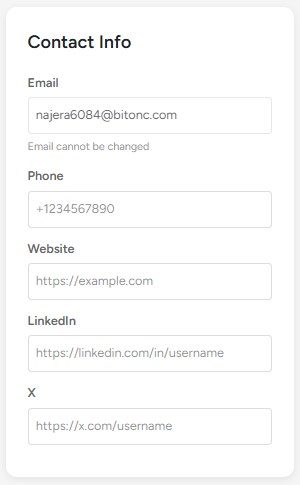
4.1.3 Contact Information
The following contact fields are available in edit mode:
+38269000000).https://linkedin.com/in/username).https://x.com/username).The email address used during registration cannot be modified after account creation. If you need to change your email, contact the platform administrators.
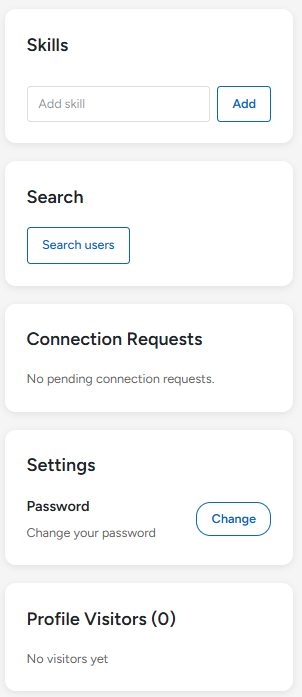
4.1.4 Skills
- Scroll to the Skills section in your profile edit view.
- Type a skill name into the "Add skill" input field.
- Click Add to confirm and attach the skill to your profile.
- Repeat for each additional skill.
Adding relevant skills such as "Marine Biology," "Aquaculture," or "Blue Economy Management" helps other users find you through the platform search feature.
4.1.5 Additional Options
4.1.6 Save or Cancel Changes
After making modifications to your profile:
- Click "Save Profile" to confirm and store all changes.
- Click "Cancel" to discard all unsaved changes and return to view mode.
Changes will not be stored unless you click "Save Profile." Navigating away from the page without saving will discard all modifications.
eCommunication Module
The eCommunication module enables networking, collaboration, and direct messaging between registered users of the ABGC Digital Platform.
5.1 Module Overview
- Search and discover registered users across all partner countries
- Send and receive connection requests to build your professional network
- Direct messaging and chat between connected users
- View other users' professional profiles, skills, and affiliations
- Cross-border collaboration across institutions, research bodies, and SMEs
5.2 Searching for Users
- Navigate to Account → Edit Profile and click the "Search users" button, or use the platform search function via the top navigation bar.
- Enter a name, keyword, organization, or skill into the search field.
- Browse the results list and click on a user's name to view their full profile.
Use Search Users to find experts in specific blue economy fields, connect with partner institutions, or identify potential collaborators for research and industry projects.
5.3 Connection Requests
- Visit the profile page of the user you wish to connect with.
- Click the "Connect" button on their profile.
- The target user will receive a notification and can accept or decline.
- Once accepted, you will appear in each other's connections list.
To manage incoming requests, go to your profile page and locate the Connection Requests panel. Accept or decline each request accordingly.
5.4 Chat and Messaging
Chat functionality is available between connected users only. You must have an accepted connection with another user before initiating a chat conversation.
eDocumentation Module
The eDocumentation module is the centralized knowledge repository of the ABGC Digital Platform, providing structured access to project outputs, policy documents, training materials, and scientific publications.
6.1 Module Overview
- Access project deliverables and official SA SKILLS project outputs
- Browse and download policy documents relevant to the blue economy sector
- Access training materials associated with eLearning programmes
- View and download scientific reports and publications
- Organized browsing by category, author, date, and document type
6.2 Accessing the Repository
- Log in to your ABGC account (see Chapter 3.3).
- Ensure your account was registered with access to the eDocuments module.
- Navigate to the eDocumentation section via the platform's main navigation or Dashboard.
- Browse documents by category, or use the search function to locate specific content by title, author, or keyword.
6.3 Document Categories
eLearning Module
The eLearning module provides access to accredited training programmes, certifications, and educational resources aligned with the European Qualifications Framework and the needs of the blue economy labour market.
7.1 Programme Types
- Access Innovative Learning Modules (ILMs) for professional upskilling
- Enrol in Higher Education Learning Modules (HELMs) with ECTS credit recognition
- Earn digital certificates upon successful course completion
- Track learning progress through your personal dashboard
- Access course materials: videos, readings, exercises, and assessments
7.2 Accessing the eLearning Platform
- Ensure your account was registered with access to the eLearning module.
- From the Dashboard, navigate to eLearning. You will be directed to edu.southadriaticskills.org.
- Browse available courses by topic, level, or programme type.
- Click on a course to view its description, objectives, duration, and prerequisites.
- Click Enrol or Start Course to begin your learning journey.
All programmes on the ABGC eLearning module are developed in alignment with the European Qualifications Framework (EQF) and respond to validated labour market needs in the South Adriatic blue economy sector.
eCommerce Module
The eCommerce module functions as the Blue Economy Marketplace — enabling sellers, service providers, and stakeholders to list and promote products and services to the broader ABGC community.
8.1 Module Overview
- List and promote blue economy products and services
- Reach a cross-border audience of professionals, researchers, and institutions
- Increase visibility for SMEs and blue economy entrepreneurs
- Browse and discover products and services from partner countries
- Support sustainable regional economic development
8.2 Product and Service Categories
- Fisheries and seafood products
- Aquaculture products and services
- Marine technologies and equipment
- Coastal and maritime tourism services
- Environmental and sustainability consulting
- Research and analytical services
- Training and professional development services
8.3 Creating a Listing
- Log in to your account and navigate to the eCommerce module at market.southadriaticskills.org.
- Click "Add Listing" or "Create Product/Service."
- Fill in the listing details: title, description, category, price or contact terms, and images.
- Review your listing for completeness and accuracy.
- Click "Publish" to make your listing visible to the marketplace community.
All listings are subject to review for compliance with the ABGC platform content policy. Only blue economy-related products and services that meet the platform's quality and scope criteria will be approved for publication.
Platform Navigation & Dashboard
This chapter describes the main navigation structure of the ABGC Digital Platform and explains how to use the user dashboard and top-level menu items efficiently.
9.1 Top Navigation Bar
| Menu Item | Description | Access |
|---|---|---|
| Home | Returns to the ABGC landing page. | All users |
| About | Overview of the ABGC project, partners, and objectives. | All users |
| News | Latest news, announcements, and updates from ABGC and SA SKILLS. | All users |
| Events | Upcoming and past events, workshops, and webinars. | All users |
| Dashboard | Personal dashboard with access to all enrolled modules, connections, and notifications. | Registered users |
| Chat | Real-time messaging with connected platform users. | Registered users |
| Contact | Contact form and support information for the ABGC project team. | All users |
| Account Button | Displays your name when logged in. Access profile, edit profile, and logout options. | Registered users |
9.2 Language Selection
The platform supports multiple languages selectable via the flag icon in the navigation bar:
- English (EN)
- Crnogorski / Montenegrin (ME)
- Italiano / Italian (IT)
- Shqip / Albanian (SQ)
9.3 Dashboard Overview
- View and access your enrolled eLearning courses and progress
- Navigate directly to eDocumentation, eCommerce, and eCommunication modules
- Monitor pending connection requests and new messages
- Access platform notifications and announcements
- Manage your profile settings and module preferences
9.4 Administration Panel Admin Only
AdminThe Administration Panel is accessible to authorized administrators only. It provides tools for managing platform content, users, and operational settings.
- User management — view, edit, suspend, or remove registered user accounts
- Content moderation — review and approve eCommerce listings and eDocumentation uploads
- Module configuration — enable or restrict access to platform modules by user group
- News and Events management — create, edit, and publish announcements
- System logs and access reports
FAQ & Troubleshooting
Answers to the most frequently asked questions from platform users, along with guidance for resolving common issues.
10.1 Frequently Asked Questions
10.2 Known Issues
Symptom: Clicking the reset link results in an error message indicating the link is no longer valid.
Cause: Password reset links are valid for 10 minutes only.
Resolution: Return to the Login page, click "Forgot password?" again, and request a new reset link. Complete the process within 10 minutes.
Symptom: After uploading a profile photo, the image does not appear or the default avatar is still shown.
Cause: Browser cache may be retaining the old version, or the image format/size may be unsupported.
Resolution: Ensure the image is in JPG or PNG format with a 1:1 aspect ratio. Refresh the page with a hard reload (Ctrl+Shift+R). If the issue persists, try a different browser.
Symptom: Entering correct email and password returns a login error.
Cause: Login is case-sensitive. Caps Lock may be active, or there may be extra spaces in the entered fields.
Resolution: Verify Caps Lock is off and there are no trailing spaces. Try a private/incognito browser window. If login still fails, use "Forgot password?" to reset your credentials.
Symptom: A specific module is not visible or accessible from the Dashboard.
Cause: The module was not selected during registration, or access has not been granted.
Resolution: Navigate to Account → Edit Profile and check your module preferences. Enable the required module and save your profile. If the module remains inaccessible, contact the platform administrators.
Appendix — Field Reference & Glossary
Quick reference for key terms, acronyms, and field definitions used throughout this guide and across the ABGC Digital Platform.
A.1 Key Terms & Acronyms
A.2 Platform URLs
A.3 Contact & Support
For technical issues, registration problems, or access requests, use the Contact or Support section on the ABGC website at southadriaticskills.org/en/contact.
The platform is operated by the University of Montenegro — Institute of Marine Biology on behalf of the Adriatic Blue Growth Cluster.